Andre Shows how to Bills Standard Fee on Claim with Fee Schedule in the Eaglesoft Account


I’m always asked if it’s possible to use the Insurance company’s Maximum Allowable Fees for estimation but to show the practice Standard Fee (“Full fee”) on insurance claims.
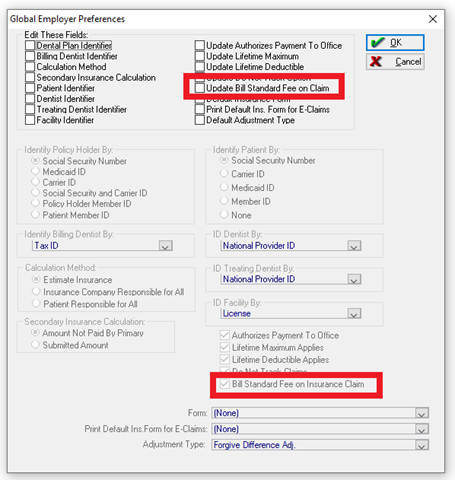
That’s as simple as using the Employers/Coverage Plan Preferences. There is a check box (screenshot below) "Bill Standard Fee on Insurance Claim" that, once checked, will display the Standard Fee on all submitted claims while posting the FS fee in the Account.
Question: Can I update ALL my Employers to make sure this is checked?
Answer: Yes! You will need exclusive access (no one else can be in Eaglesoft). Go to Utilities>Mass Update>Global Employer Preferences and check the Update Bill Standard Fee on Claim box (Upper Right) then OK (Screen shot below), You will also need to change the Practice Preferences (File>Preferences>Employer) and check the box for Bill Standard Fee on Claim, so all future created Employers have this setting.
Question: Are there “problems” with this preference being set?
Answer: The one that I have encountered is, in a scenario where treatment with the same code changes fee based on time/difficulty of treatment.
Example: Orthodontic treatment for 24 months is $2,400 but for 36 months it’s $3,600. The ADA code us the same regardless of the time or fee. If the Standard Fee is $2,400 and you post $3,600, $2,400 will be the “Standard Fee on Claim” as set by this Preference. The same could be said if the office “discounted” a service. The Standard Fee would be submitted on the claim. It’s important to uncheck this preference in the “discount” scenario before processing a Walkout, then re-checking if after the Walkout.
EVERY office should be submitting the practice’s Standard Fee to insurance carriers on all claims no matter if the practice is Inside or Outside Preferred Provider Networks.
The Office does have choices regarding how their Fees show up in the Account Screen and on the Walkout Report and Treatment Plans.
Walkout screen Option 1 (the default):
Walkout screen Option 2:
Notice the two extra columns? One that shows the Standard Fee and another that shows the Adjustment made between the Standard and the fee in the Fee Schedule and/or Coverage Book.
To show this extra column, the office must update the Eaglesoft system Preferences (File>Preferences)
Question: How do I get my Standard Fees ("Full Fee") to show on my Walkout Statements (“receipts”) and in my Treatment Plans?
Answer: In File>Preferences>Insurance there is a Check box (see below) that says, "Show Standard Fee and Adjust On Walkout and Treatment Plans". Be warned, this will be the default for all Walkout Statements and Treatment Plan to show this new line(s).
This is how the updated layout of the Walkout report (“receipt”) will show:
Before Preference update:
After Preference update:
WARNING: It is important as an In-Network Provider that you show the Standard Fee and the Allowable Fee in the Account and on the Walkout using the steps above. An office that I work with received the following notice during an audit by a carrier:
Fees on the patient ledger do not represent the fee submitted to XYZ Insurance
The fees posted to the patient ledgers are reduced by the XYZ Insurance adjustment; these fees do not represent the fees submitted to Delta Dental. In all instances, the fees posted to the “Debit” column on the ledger must coincide with the fees billed to XYZ Insurance. Once Payment is issued by XYZ Insurance, the appropriate adjustment should then be posted to the ledger.
It's important to make sure you update Treatment Plans when Fee Schedules and/or Coverage Books change. The best way is to update plans as you open them by clicking the View All Items button the “Recal Ins” button at the bottom of the TXP screen. I have taught practices to update ALL their Fee Schedule at the end of each month. In this process of updating, you have to make sure both Update Treatment Plans and Update Scheduled Services boxes are checked.
DISCLAIMER:
This is a resource guide and all decisions on each dental office setup should remain the sole decision of the dentist/owner of the practice. Eaglesoft is a registered trademark of Patterson Dental Company. All other software or products mentioned are the property of their respective owners. Although Andre Shirdan was an employee of Patterson Dental, he is not associated with Eaglesoft or Patterson Dental Company or endorsed by Patterson or any other Company Mentioned in this blog. Although I have gone to great lengths to make sure the information is accurate and useful, I recommend you consult a lawyer if you are seeking legal advice.
In no event will the creator of this document be liable for loss of profits or special, indirect, or consequential damages. No action relating to obligations here under may be brought by the reader or author more than one year after the occurrence of the event giving rise to any cause of action. The writer accepts no legal responsibility for the correctness and completeness of this material and its application to specific factual situations.